
One of the best ways to improve as a glider pilot is to study how others flew the same task. Vulture's compare tool lets you put multiple flights next to each other and see exactly where the differences are, from thermal selection to cruise speed to leader/follower behaviour.
Starting a comparison
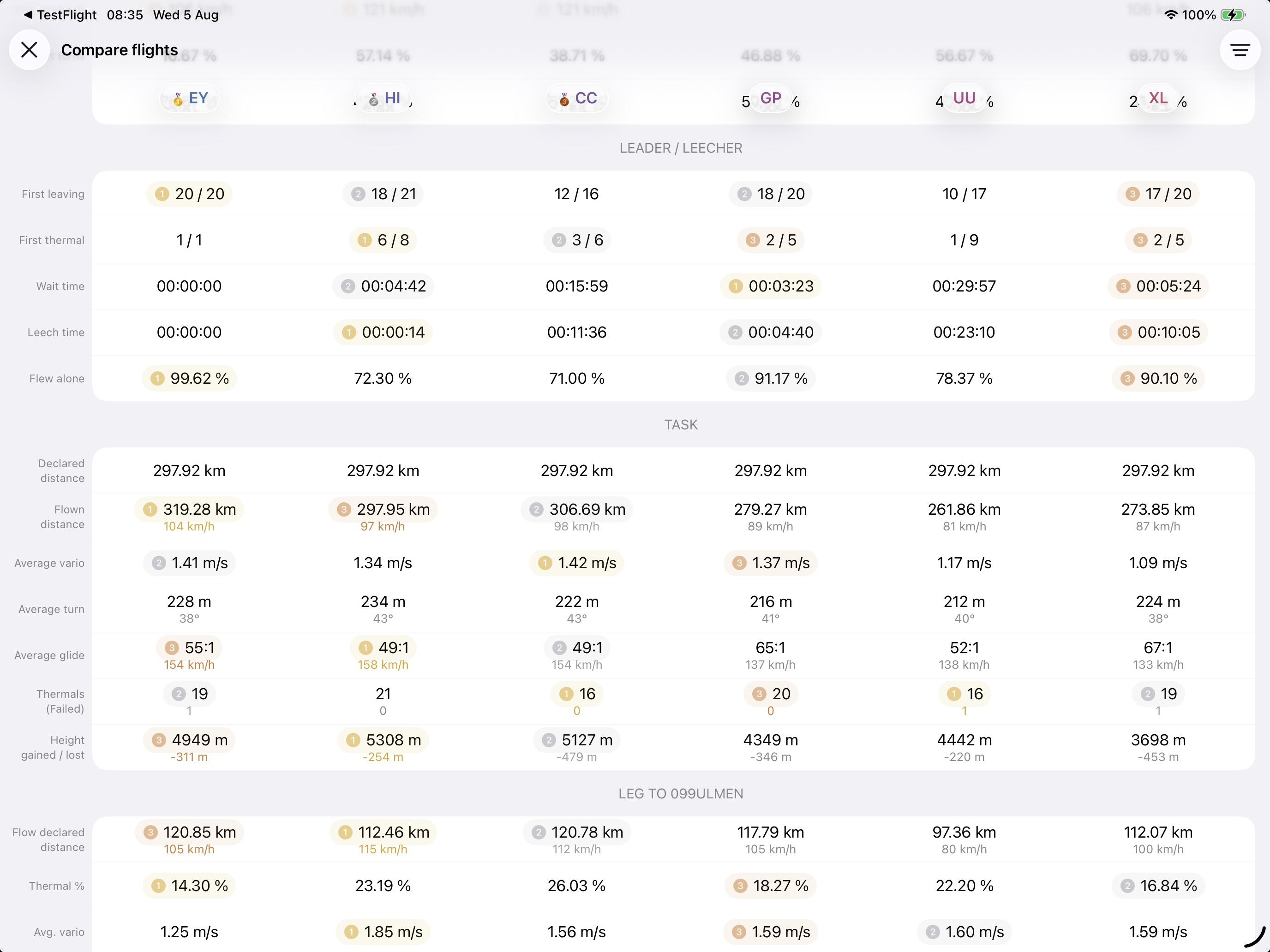
Open two or more flights on the map and a compare button appears in the top right of the map's bar. Tap it, or press ⌥⌘S with a keyboard attached, and Vulture lays out each flight as a column so you can scan the numbers at a glance. The best values are ranked with gold, silver, and bronze badges. On a Mac the comparison opens in a window of its own, so it can stay up beside the map.
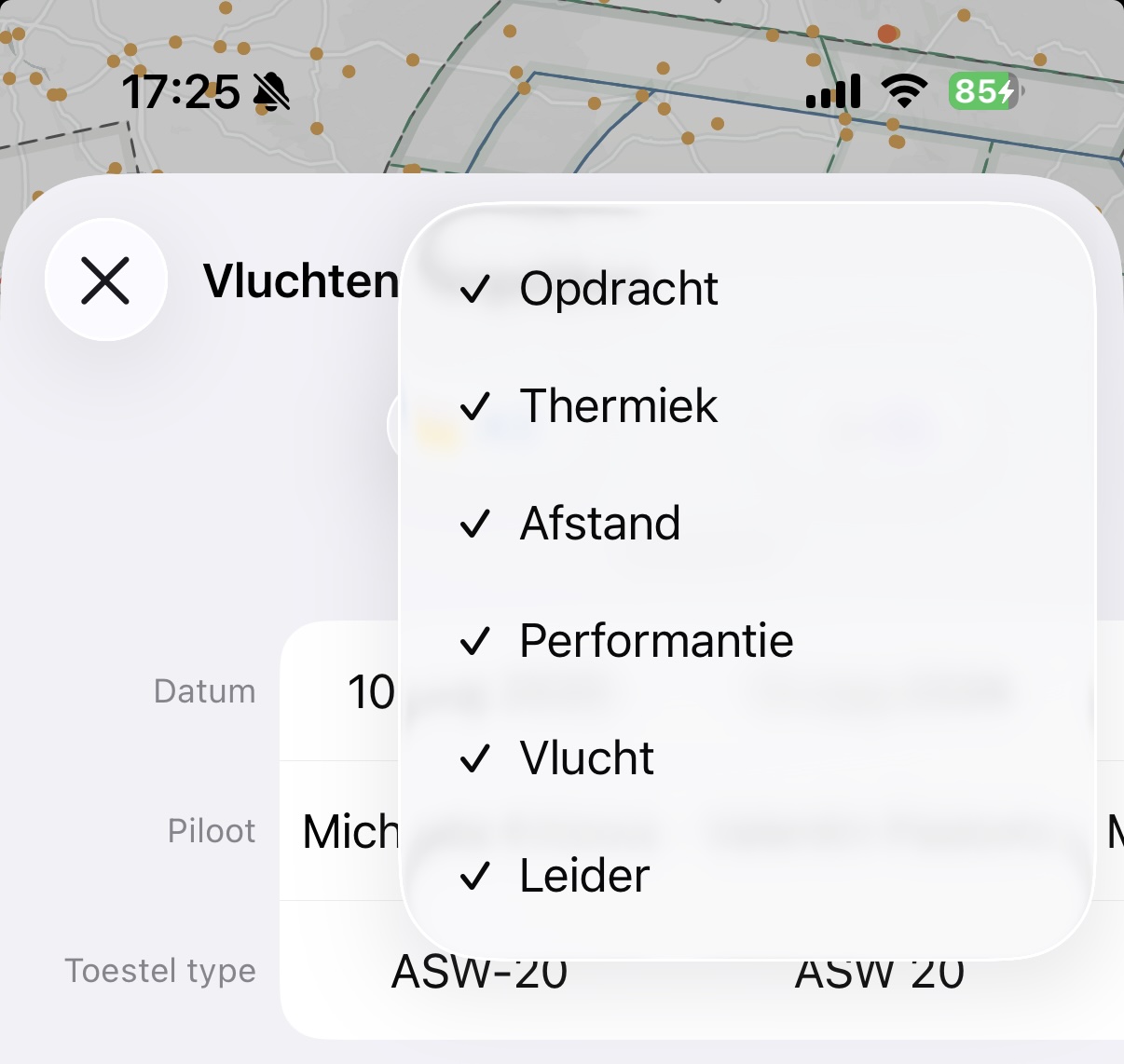
The filter button at the top opens a menu that switches groups of rows on and off, so you can cut the table down to what you're actually studying:
- Task: declared distance, flown distance, average climb and glide, average turn, thermals and height gained on task, detour, start time, altitude and speed, finish altitude and speed, and a leg-by-leg breakdown
- Thermal: number of thermals, height gained, average and best vario, thermal percentage, average turn and airspeed, left and right turn share
- Distance: max distance out, best 1h and 2h distance, best free, triangle, out-and-return and straight distance, detour
- Performance: flight duration, engine time, height gain, average glide
- Flight: date, pilot, and glider type
- Leader: who led, who followed, thermal delay, follow ratio, pilot role (Solo, Leader, Follower, Racing)
The Task group only appears when every flight you're comparing carries the same task. If they don't, override it first, as below.
Tap any dotted-underlined label to see a short explanation of what that metric means. Handy if you're not sure what a number represents.
Override the task
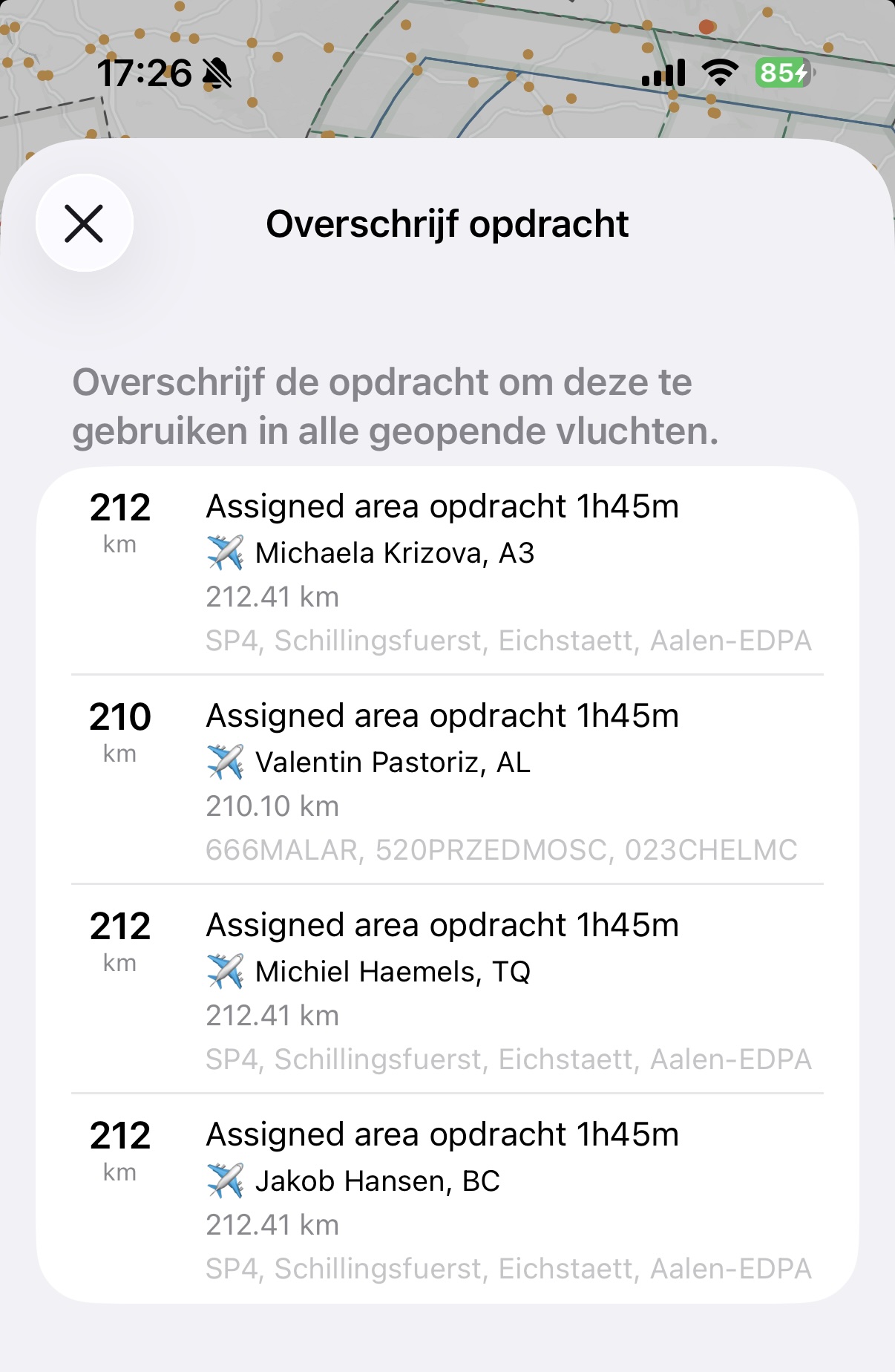
When comparing flights from the same competition day, it's important that all flights are analysed against the same task. If the declared task in an IGC file is missing or different, the comparison won't be meaningful.
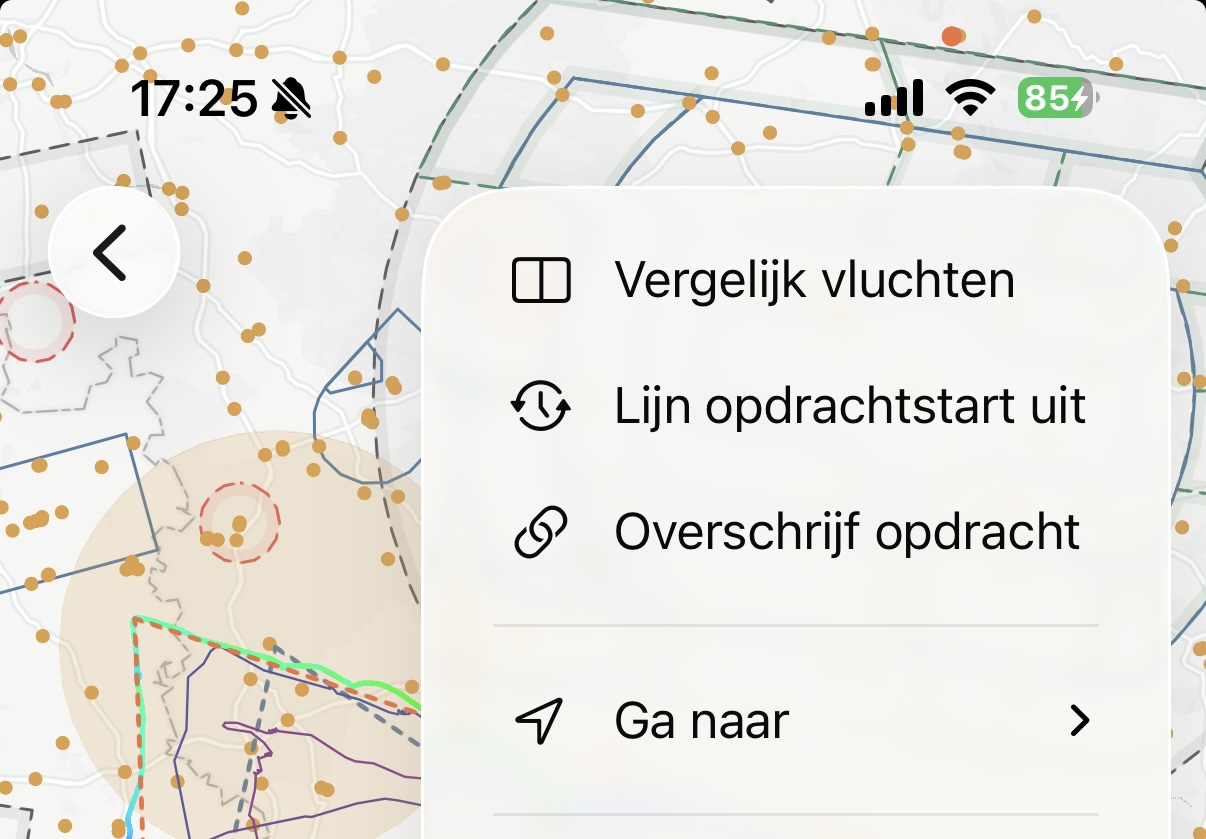
That's where Override task comes in. Tap the map's menu and select Override task to pick a task that will be applied to all open flights. Vulture recalculates every metric (task speed, distance, detour, legs) based on the new task definition.
You can also drag a task straight onto the flight map from the task list, or drop in a CUP file from Files, and every flight on the map takes that task.
To go back to the original declarations, pick Reset override from the same menu.
Automatic task from Soaring Spot
If you open flights from Soaring Spot, this happens automatically. Vulture fetches the competition task alongside the day's results and applies it to every flight you open. So when you open a competition day, tap Select and pick several pilots, they're all immediately ready to compare on the same task, without any manual setup.
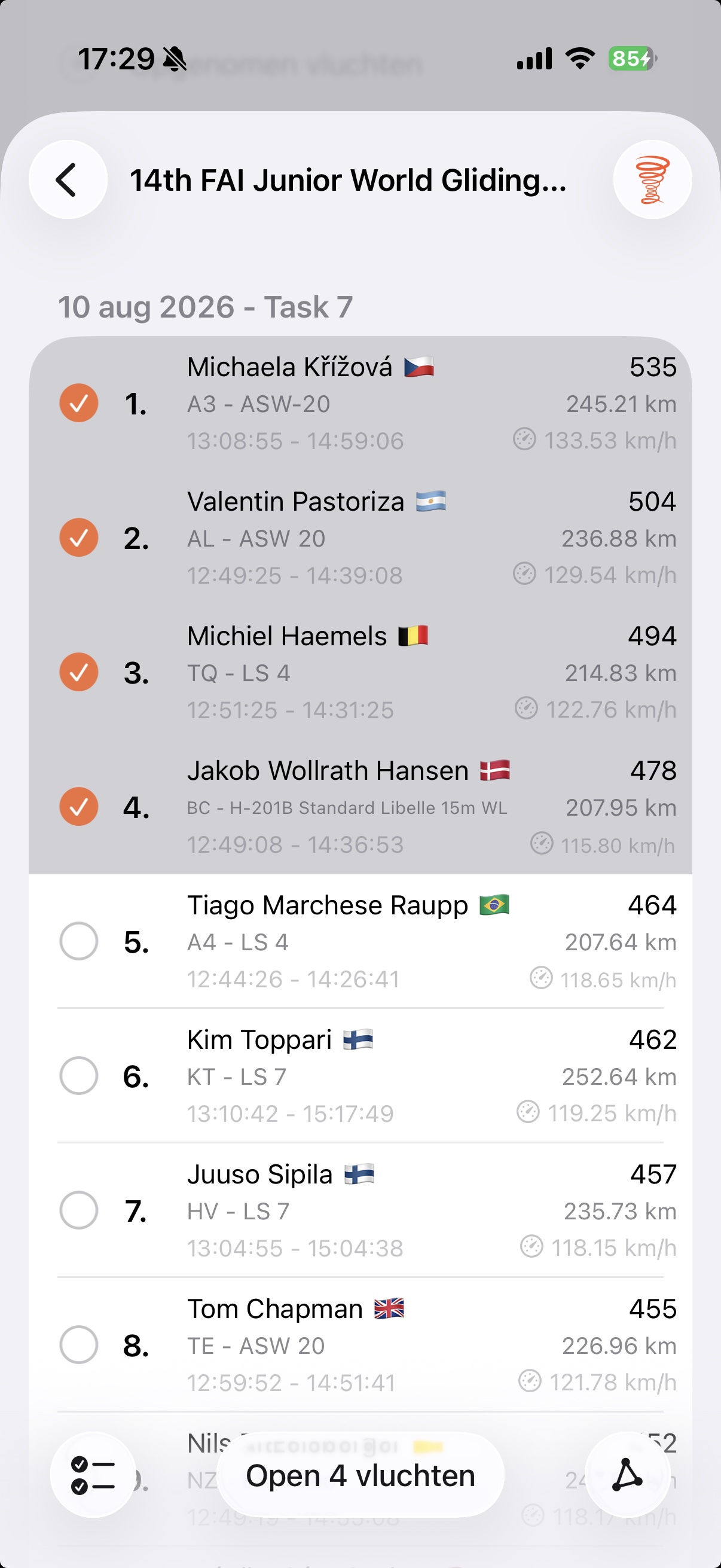
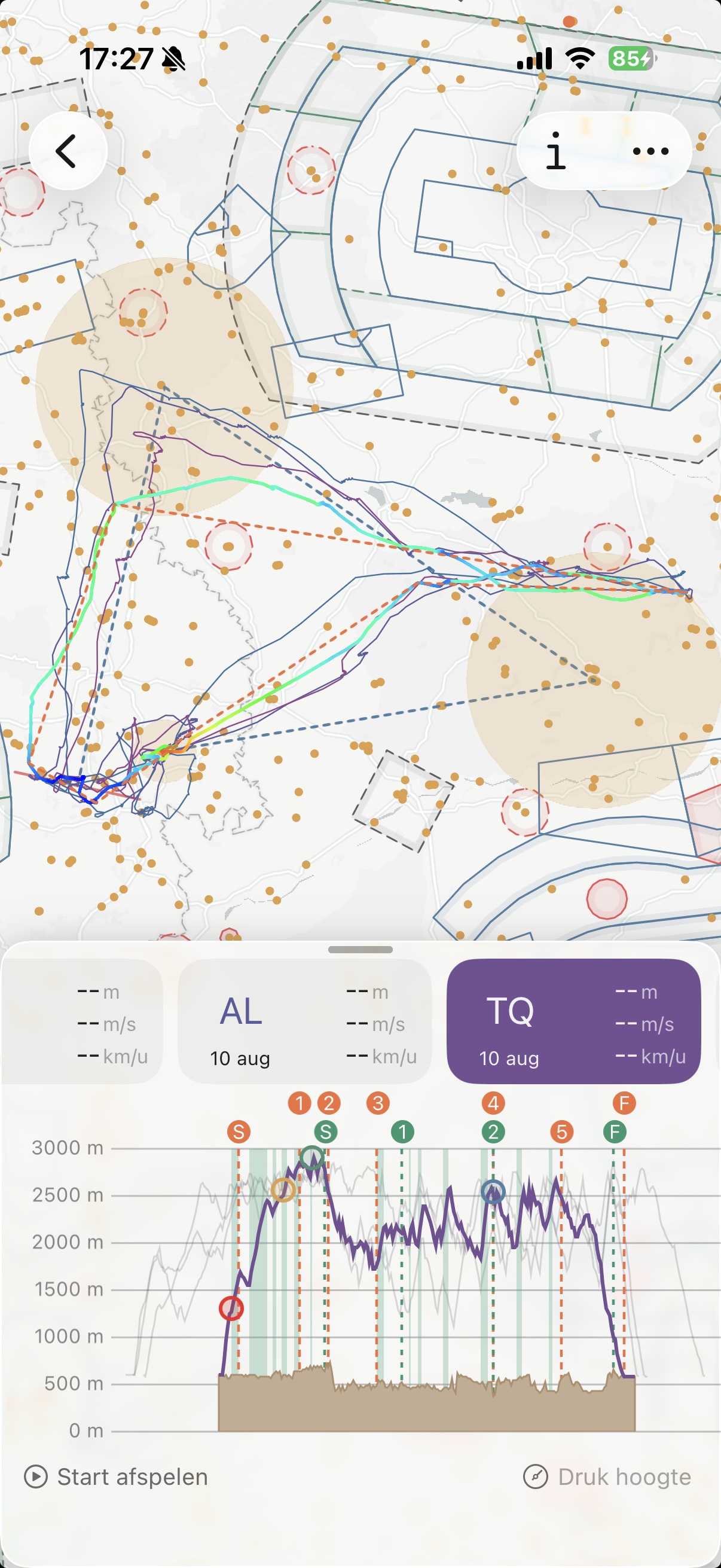
This makes it easy to open the top finishers and study how they flew the task differently: which thermals they chose, where they deviated, and how their cruise speeds compared.
Happy comparing, and blue skies!